What if you could:
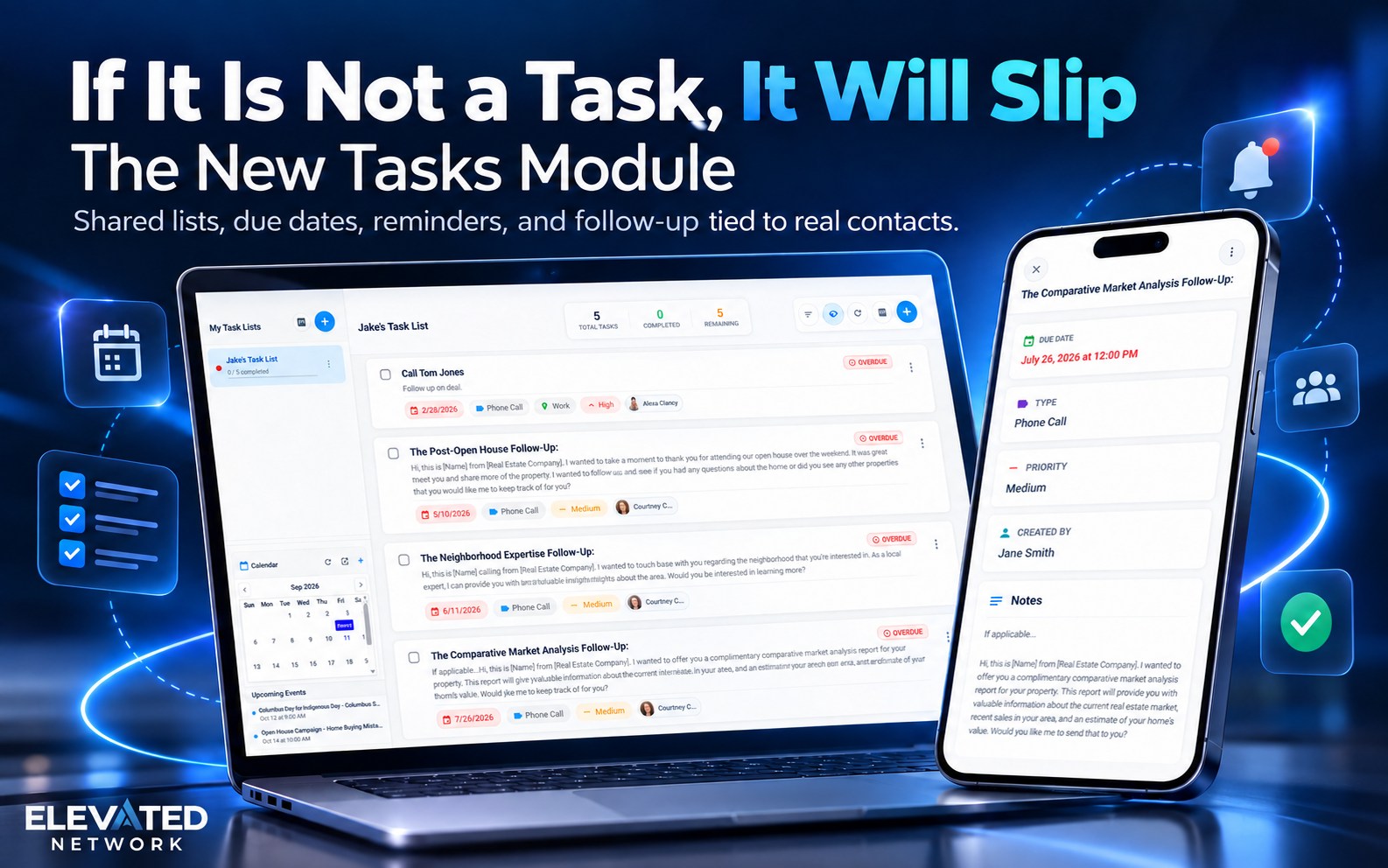
- Create a follow-up with a due date, time, and reminder
- Attach the contact so the promise lives on the file
- Share a list with a teammate and set whether they can edit
- See task reminders on My Dashboard
- Ask Emma: “Create a follow-up task to call Maria tomorrow at 2”
Real estate follow-up fails between “I will” and “I did.” Sticky notes become “sorry, crazy week.”
Productivity → Tasks puts the promise next to the CRM — not in a grocery app that does not know your people. Honest limit: Emma can create tasks and list what is due today. She can add an event to your own calendar when you ask. She does not contact leads or send them invites.
What is the Tasks module?
My Task Lists (name, color, description, share, permissions). Workspace with Total / Completed / Remaining. Sort by due date, title, or priority. Hide completed. Kanban across lists. New Task: title, notes (formatting), priority, type (phone call, to-do, and others), due date/time, location, two reminders, assign team members and contacts.
1. Lists for how you actually work
The problem: One dump list is how everything looks optional.
What you can do: Listing launch, open house follow-up, buyer recaps, personal prospecting — separate lists. Share the ones a team should see.
Example: One shared “new leads” list with due dates beats a motivational Monday email.
2. A task that looks like work
The problem: A title with no owner and no date is a wish.
What you can do: Priority, type, reminders, location, people. A task with a contact is a follow-up you can open later. A task with neither date nor owner disappears again.
Example: Phone Call, High, tomorrow 2 p.m., first reminder one hour before, assign the contact.
3. It shows up where you already look
The problem: Hide-and-seek in the sidebar.
What you can do: Task reminders on the dashboard Activity Feed → View Task.
Example: Tomorrow, start on My Dashboard and knock off what the feed shows.
Share the list, not the guilt
Sharing a list = ongoing collaboration. Assigning people on one task = this one’s yours. Do not CC the whole office on every to-do.
How it compares
| Factor | Elevated Tasks | Sticky note | Generic to-do app |
|---|---|---|---|
| Contact on the task | Yes | No | Rarely |
| Dashboard | Feed reminders | No | No |
| Emma | Can create the task | No | No |
| Calendar booking | Emma adds the event when you ask; you confirm with the client | You book | You book |
Put yesterday’s leftovers in the system
- Open Productivity → Tasks.
- Create one list for the next seven days — not the rest of your career.
- Add the three follow-ups you are already late on. Attach contacts.
- Set a reminder you will not ignore.
- Share if someone else should see it.
- Tomorrow, start on My Dashboard.
Common questions
Q: Can Emma put a showing on my calendar for the buyer?
A: She can add the event to your own calendar when you ask. She does not contact the buyer or send an invite.
Q: What’s the difference between a task and a calendar action?
A: Tasks are work items (call, to-do). The calendar is also where you schedule sends and events. Use both.
Q: Is this extra?
A: Included on membership ($49.99/month new-member pricing).
The bottom line
The new platform did not invent tasks. It put them in the same building as your leads. That is the only place they survive a busy Tuesday.
Ready to capture three overdue calls?
Sign in and attach the contacts. Prospects: start a 14-day trial and create one task from Ask Emma, if she has reached your account.
Start Your Free Trial → (opens in new window)
Card required to prevent spam; you will not be charged if you cancel before the trial ends. Cancel anytime in account settings.